Version 8.10
Version 8.10 contains all the recent enhancements announced on the forum:
- Refine Pick List
- Marking or Unmarking
- Glossary Viewer Search: using anchors
- Short Form Rule for 4-word phrases
Prime Glossary
Version 8.10 introduces a new glossary called #Prime.xglo for all the expansions you want everywhere!
Read more about the Prime Glossary
Instant Text New Look
A lot of work has been done for Instant Text to better adapt to various scaling factors. This was especially needed for 4K laptops which use a scaling factor of 300% for a resolution of 3840x2160!
At the same time we did some cosmetic improvements on the Instant Text screen:
| Version 8.10 | Version 8.00 |
|---|---|
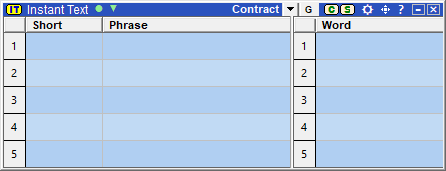
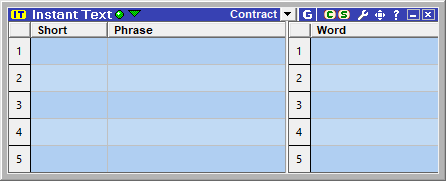
Version 8.10 adopts the trendy Windows 10 thin borders.
A new
Options Button
|
|
 replaces the former wrench.
Instant Text Docking
A little video that shows the new docking!
Skipping Letters inside Phrase Short Forms after First Character
Being able to skip letters is one of the most powerful features of Instant Text. With version 8.10 you can now skip letters inside Phrase Entry Short Forms immediately after the first character.
In the following example, you have typed hcd:
| Version 8.00 | Version 8.10 |
|---|---|
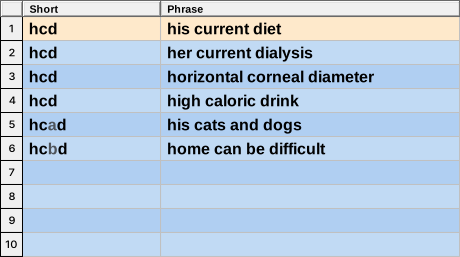
8.00 displays 6 phrases. |
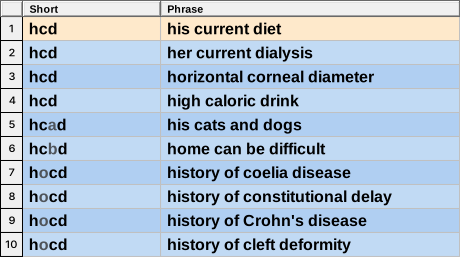
8.10 displays the same phrases as 8.00 plus other phrases for which you have skipped the second letter of the short. |
Note that the number of characters that you need to type before being able to skip characters can now be configured in the Display Options. This allows you to revert to the version 8.00 mode where you can only skip letters inside phrase short forms after 2 characters, if that is what you want.
Microsoft Smart Cut and Paste
With version 8.10 you no longer need to turn off the Smart Cut and Paste option in Microsoft Word, Outook and PowerPoint.
In version 8.00 turning off Smart Cut and Paste was required for longer expansions produced via the clipboard.
Typing Digits... Best of Both Worlds
You have most likely experienced the situation where:
You type a digit to highlight the displayed expansion table line you want to expand.
And, sigh ... surprisingly another expansion shows up.
You just got hit by the rule:
The Line Number Selection mechanism is activated only when the typed abbreviation ending with the digit yields no matches.
The good news is that this rule has been softened in version 8.10:
Instant Text will now display both:
- the expansions that match the typed abbreviation ending with the digit,
- and the expansions you expected to see with the Line Number Selection.
Thereby you get a second chance to select the line you want to expand with a subsequent Line Number Selection.
Read Line Number Selection help page to see an example.
Space bar expansion improvements
Version 8.10 also brings very nice improvements for users who expand using the space bar. If you are using Marker Keys to expand, you may as well skip the following paragraphs.
No More Prefill in the Phrase Table
In the following example, you have typed tps and your current glossary:
-
contains no phrase with a short of tps
-
but it contains phrases with shorts starting with tps.
| Version 8.00 | Version 8.10 |
|---|---|
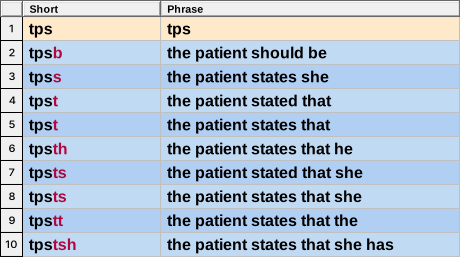
8.00 displays a so-called prefill line at the top of the phrase table. This prefill line is there to make sure that if you type tps followed by a space, this is exactly what you will get. |
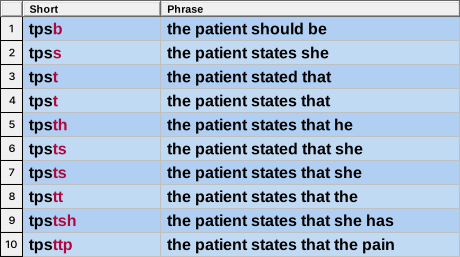
8.10 displays the same phrases as 8.00 without displaying a prefill line. Indeed, it allows to display one more phrase. More important, you also notice that it does not highlight any phrase. This is crucial because a prerequisite for a phrase to be expanded is that it needs to be highlighted. Hence if you type tps followed by a space, this is exactly what you will get. As there is no highlighted phrase, no expansion takes place. |
No More Unwanted Phrases or Continuations
In version 8.00 there were some loopholes for unwanted phrases or continuations when typing numbers.
In version 8.10 these loopholes have been completely closed.
You will never get unwanted phrases or continuations when typing numbers, because they do not get automatically highlighted anymore, if it appears that you have typed only digits. And remember:
a prerequisite for an expansion to be expanded is that it needs to be highlighted
If, while having typed only digits, you are interested in expanding a phrase or continuation displayed in the phrase table, you will need to explicitly highlight it first, using the Expansion Table Highlight Hotkeys.
Highlighting an Expansion
Ways to move the highlight stay unchanged in version 8.10.
When there is no highlighted expansion, pressing the Shift key alone once highlights the first line.
Expanding Continuations
The best way to expand a Continuation is to:
- First type its initial letter: this will narrow down the displayed continuations to those starting with that letter.
- Use the Line Number Selection if needed.
- Finally hit the space bar.
You may also select continuations with the line number selection only, but you will then need to explicitly highlight the wanted continuation using the Expansion Table Highlight Hotkeys.