Version 8.20: Pick at its Peak! Take a Peek!
Version 8.20 is dedicated to pick lists. It brings very nice enhancements which make pick lists more powerful than ever!
Navigating Pick Lists
Version 8.10 already introduced the possibility to refine pick lists by typing an initial.
Version 8.20 pushes the concept even further allowing you to type more letters to refine even more!
Imagine we have expanded a glossary entry with a Pick command which displays the days of the week:
| {Pick}day{/Pick} | Typing s | Typing sn |
|---|---|---|
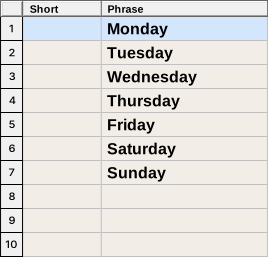
The Phrase Table displays a pick list with the days of the week. |
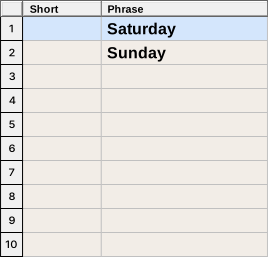
Typing an s has reduced the scope to pick list items starting with an s. |
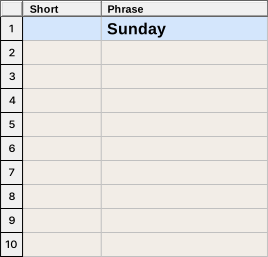
Typing sn has reduced the scope to pick list items starting with an s which contain a subsequent n.
|
This improved navigation inside pick lists by typing more characters to reduce the scope opens up the door to pick lists much bigger than the seven days of the week.
Version 8.20 introduces new types of pick commands which broaden the concept with different use cases.
Pick Expansion command
The Pick Expansion command enables you to pick an expansion from a specified glossary.
Unlike the Pick command where you define your pick list in the special Pick Glossary, you define your pick list as a separate Words n' Phrases Glossary.
Hence, the Pick Expansion command is the only pick command that displays pick list items with individual short forms. And typing letters of these short forms enables you to reduce the scope of the displayed pick list items, the same way as you would reduce the scope of the displayed expansions for an expansion glossary.
This command is a very nice aternative to including a glossary. Using the PickExpansion command gives you access to all the expansions of the specified glossary. Everything happens as if you had temporarily switched to the specified glossary for the time of an expansion and then switched back to your current glossary.
The following expansion for example:
{PickExpansion}
filename = "Glossary\General\Dates_MDY-20XX.xglo"
{/PickExpansion}{Wrap}
{NoSpacing}
enables you to pick a date without having the dates glossary included in your current glossary.
If at that point you wonder whether you should rather use Pick or PickExpansion commands, our advice would be to use Pick for smaller pick lists and PickExpansion for larger pick lists.
Pick Window command
The Pick Window command enables you to activate an open application window.
It is a very nice alternative to the Activate Window command which enables you to activate a specific window identified by its title. Indeed, the PickWindow command is more powerful as it displays a complete list of all currently open application windows and lets you pick the one you want to activate.
The following expansion:
{PickWindow}{Wrap}
{NoSpacing}
-
displays a Pick List
with the titles of all currently opened application windows:
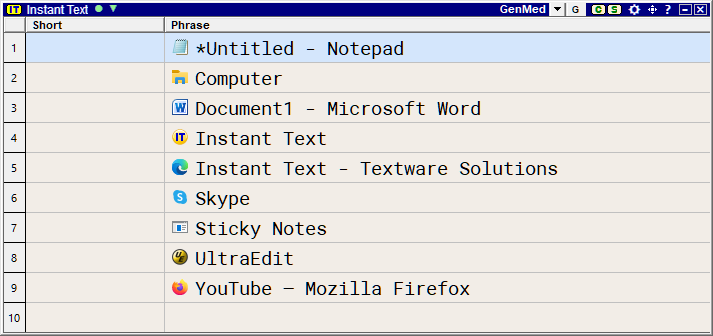
- Upon picking one of the displayed choices, the focus switches to the corresponding application window. To switch to YouTube, for example, you may type y followed by a Trigger Key.
Pick Active Glossary command
The Pick Active Glossary command is a new powerful command that can be used to:
- pick a glossary,
- and perform a specified action on that picked glossary.
Pick File command
The Pick File command is a new powerful command that can be used to:
- pick a file,
- and perform a specified action on that picked file.
Pick Folder command
The Pick Folder command is a new powerful command that can be used to:
- pick a folder,
- and perform a specified action on that picked folder.